ACCOUNTING END OF DAY GUIDE – CLJ-CMS
Q: What are the recommended steps for the end-of-day accounting in CLJ Enterprise Justice:
A: The following guide was developed to help courts walk through the end of day process in CLJ Enterprise Justice. It includes tips that will help make bank account reconciliation much easier to process the following month.
Your end-of-day deposit should be completed at the end of the day after all payments have been receipted and/or adjustments made. You can also do it any time the next day as long as you are only including tills from the prior day. Please do not close any tills midday to include in the prior day’s deposit.
Make sure all tills are closed. (Close and Reconcile Till – BP0106)
- Staff Tills - Staff should close their tills at the end of each workday or before they start receipting any money the next business day. Note: Staff do not have to stop receipting until the full process is done as they did with JIS.
- OCA Adjustment Tills - Close any open OCA Adjustment Tills – this is a till that the system uses when fines are adjusted from the Sentence Component on the Disposition tab and it will reopen automatically. This is not a till that anyone in the court should be using but must be closed and reconciled. There should never be any money in this till.
- If you do see any money in this till, please submit an eService Ticket so we can research.
- Defendant Access Till - Close any Defendant Access Till that was opened 2 days prior. Defendant Access Tills will automatically close at 11:45 pm and open a new till when a payment is received after that time. However, if you do not receive another payment for a few days, the till will remain open, and it is OK to close that till. For example, if the till that was opened on Wednesday is still open on Friday, please close that till. Do not close the current day’s till or one that was opened the day before. Following these instructions will ensure your tills match the deposits on your bank statement.
- eFile Till - Close any eFile Till that was opened the day before. For example, if the till was opened on Wednesday, you would close that till on Thursday.
Have your accountant verify and reconcile all tills. (Close and Reconcile Till - BP0106)
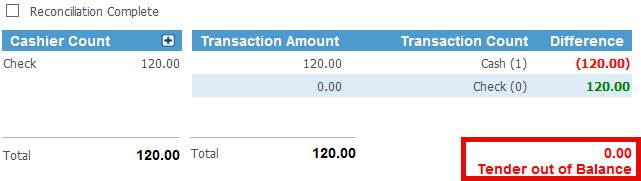
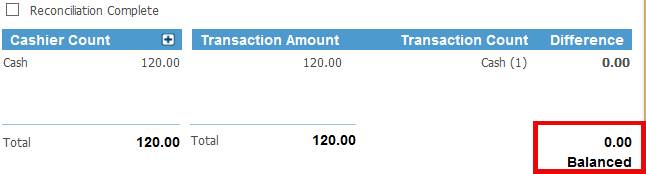
- Verify Tender Methods - Make sure to verify all tender methods are correct. Count all your tender methods and record them accurately. You can use the calculator feature on the Cashier Count to assist. Do not just look at what the screen says you should have. If your Tender is out of balance (see image below), you must reopen the till, void the payment and receipt it with the correct tender method to avoid future issues. (Void a Payment or Miscellaneous Payment - BP0152)
|
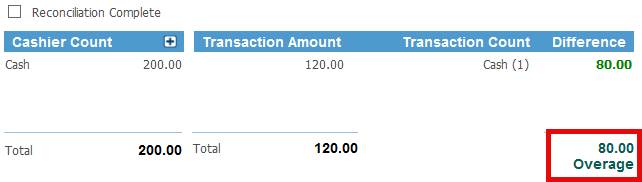
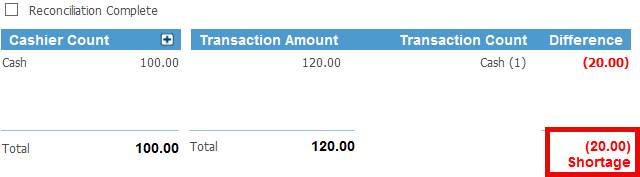
- Verify Everyone Balances - Make sure all clerks are in balance. If there is an overage/shortage or tender out of balance showing at the bottom of the screen, try to reconcile it. Do not leave anything as an overage/shortage unless it is a true over/short. (Void a Payment or Miscellaneous Payment - BP0152)
|
- Example of a Balanced Till - A fully balanced till will look like this.
|
Once all tills are closed and reconciled, you can process your deposit. You should process your deposits daily. Failure to do so will make bank account reconciliation difficult. (Manage Deposit - BP0122)
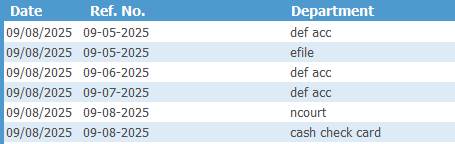
- Name each deposit - It is recommended to enter information in the Reference No and/or Department boxes to identify the deposit.
For Example – Front Counter, Adjustment Till, Defendant Access, etc. You could also include the date of the till as you may be processing more than 1 Defendant Access Till on the same day.
|
b. Separate Deposits - It is highly recommended to separate your tills into the following categories listed below and then deposit and export each separately. Each of these categories will have a separate deposit in the bank and by doing them individually in EJ, the bank deposit will match the line item in EJ making for a much easier bank account reconciliation.
- Defendant Access Till – include only 1 till in each deposit
- eFile Till – include only 1 till in each deposit
- Adjustment Till - include only 1 till in each deposit
- Counter Tills – include all of your staff and your OCA Adjustment Till.
- If you use a 3rd party payment vendor for online payments, you could also deposit that separately if you receive the money by ACH. If you receive a paper check, it can be included with your Counter Tills.Once you have Closed your deposit, click the View Deposit Analysis hyperlink.Scroll to the bottom and verify your Court Checking Account appears. If see anything other than your Court’s Checking Account, submit an eService ticket.
Export your deposit. Each deposit should be exported one time only. (Manage Deposit - BP0122)
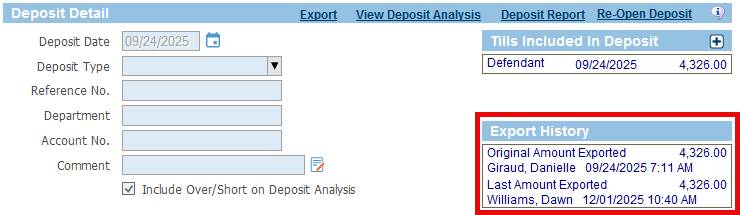
- Once you have properly exported your deposit, you will see the details in the Export History box.
|
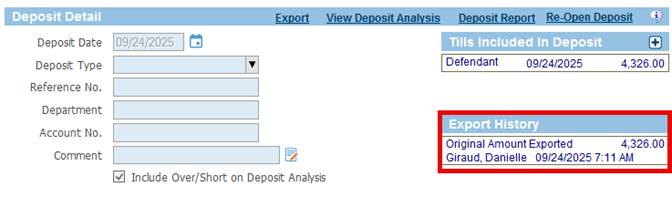
- If you have exported the deposit more than once, you will see multiple entries in the Export History box. This will cause your deposit to appear in your Chart of Accounts multiple times and will need to be addressed by filing an eService ticket.
|